

The App Store doesn’t carry Fortnite. Apple removed it back in 2020, and it’s stayed off ever since because of the ongoing legal fight between Epic Games and Apple over App Store fees. That’s the whole reason cloud gaming has become the main workaround for iOS players.
Cloud gaming solves the problem in a simple way. A remote server runs the actual game and streams the video and audio to your iPhone or iPad in real time. Your taps and swipes travel back to that server as inputs. Your device doesn’t install anything it just displays a live video feed that reacts instantly to your touch. Because the server does the heavy lifting, your iPhone doesn’t need to be powerful at all.
This guide covers the two main free options NVIDIA GeForce NOW and Xbox Cloud Gaming plus tips on connection quality, controls, and common problems. You can get into a match today. No jailbreak, no sideloading, no risky files.
What You Need Before You Start
Your setup matters more than which platform you pick. Check these three things first.
Minimum Requirements for Smooth Streaming
Your internet connection is the single biggest factor here. Most cloud gaming providers recommend at least 15–25 Mbps for a stable 1080p stream. Choose Wi-Fi over cellular data when you can, since a wired or strong Wi-Fi connection beats cellular almost every time and in Fortnite, a half-second of lag can cost you a fight.
Compatible Devices
Because cloud platforms stream games through mobile Safari rather than rendering graphics locally on your device, any modern iPhone or iPad can run Fortnite at maximum settings without hardware slowdowns. However, while cloud streaming delivers a premium online battle royale experience on iOS, relying on continuous data or Wi-Fi isn’t always ideal. If you keep a secondary phone on hand for gaming, explore our guide on play high-FPS offline action games to enjoy smooth, high-performance gameplay anywhere without an internet connection.
An Epic Games Account
You’ll need a free Epic Games account to load your Fortnite profile, skins, and progress. The cloud service just gives you a window into your existing account it’s not a separate version of the game. If you’ve played Fortnite on another platform before, your account, purchases, and Battle Pass progress carry over automatically.
How to Play Fortnite on iOS Using GeForce NOW
NVIDIA’s GeForce NOW added dedicated touch controls for Fortnite, built specifically for mobile Safari. That makes it one of the smoothest free options for iPhone and iPad players.
Step-by-Step Setup
Open Safari it has to be Safari on iOS, not Chrome and go to play.geforcenow.com. Create a free NVIDIA account if you don’t have one, then sign in. Follow the on-screen prompt to add the page to your home screen. This turns it into an app-like shortcut and cuts down on browser clutter. Tap the new icon, search for Fortnite, then link your Epic Games account so your existing profile loads in.
Free vs Paid Tiers
The free membership lets you play Fortnite with standard streaming quality, though sessions come with time limits. Paid tiers (Priority and Ultimate) unlock longer sessions, higher frame rates, and priority server access during busy hours. For casual play, the free tier works well. You’ll just wait in a queue occasionally during peak hours that’s the main trade-off for skipping the subscription.
How to Play Fortnite on iOS Using Xbox Cloud Gaming
Xbox Cloud Gaming comes with an Xbox Game Pass Ultimate subscription, and the setup looks almost identical to GeForce NOW.
Step-by-Step Setup
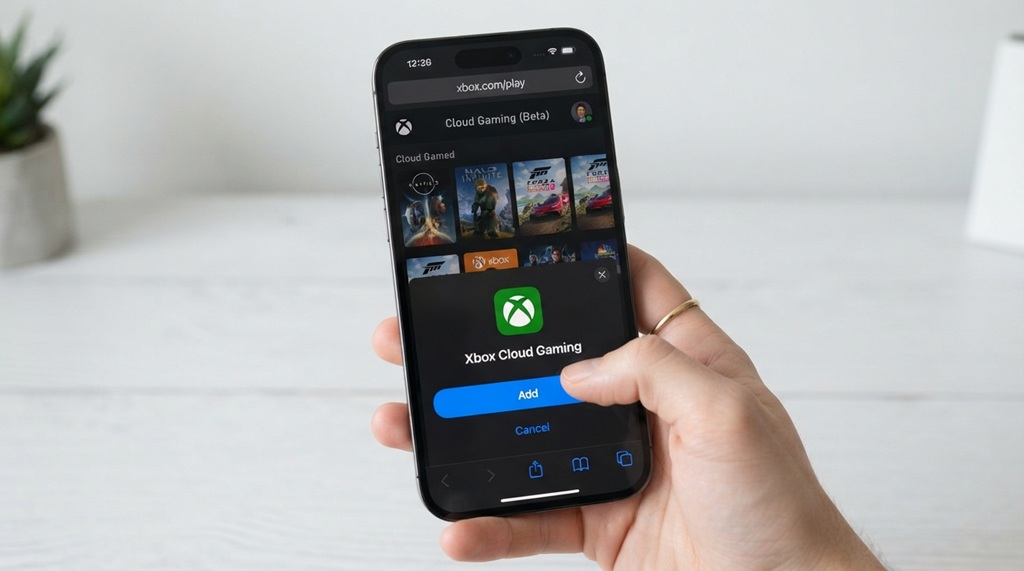
Open Safari and go to xbox.com/play, then sign in with a Microsoft account. Search for Fortnite in the library and tap Play. Add a home screen shortcut when Safari offers it, so future sessions launch faster. Fortnite itself stays free-to-play, so you won’t buy the game. Your Xbox Game Pass Ultimate subscription is what unlocks cloud streaming access not a game purchase.
Xbox vs GeForce NOW: Which Should You Pick
Pick Xbox Cloud Gaming if you already subscribe to Game Pass Ultimate for other games it’s bundled in, so you get Fortnite streaming for free. Pick GeForce NOW if Fortnite is the only cloud game on your radar, since it offers a genuinely free standalone tier. Try both if you’re unsure. Each service maps its touch controls a little differently, and Fortnite can feel slightly different depending on which one you use.
Fixing the Safari Fullscreen Problem
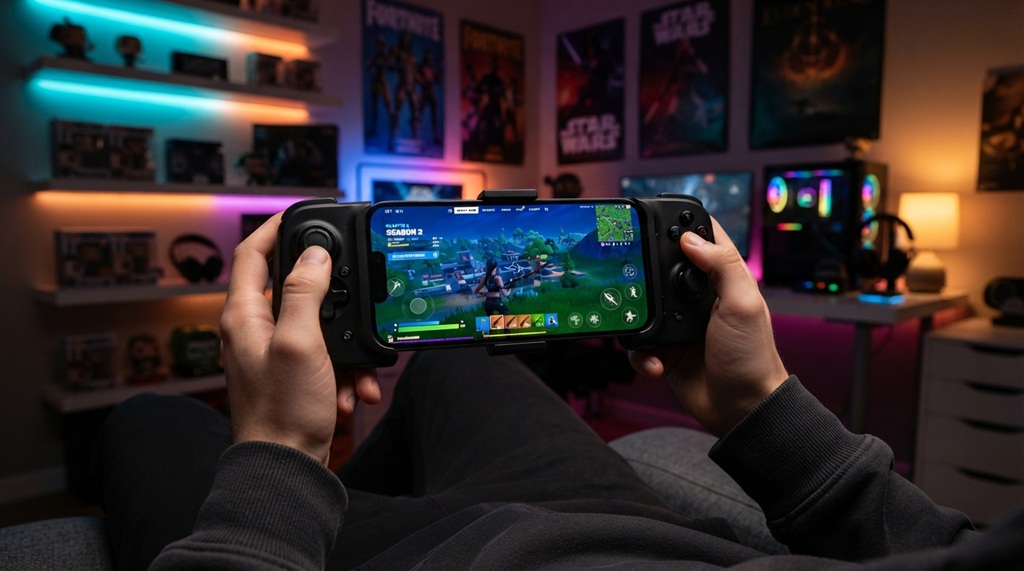
Most guides skip this, but it’s worth solving. Safari doesn’t give you a true fullscreen view. The address bar and iOS status bar eat into your screen space, and that can throw off your aim during builds and edits. This problem comes from iOS Safari itself, not from Fortnite.
Use a Home Screen Shortcut
Always launch the game from a home screen shortcut instead of a regular Safari tab. This strips out most of the browser interface and gives you noticeably more screen space. Set this up once during your initial GeForce NOW or Xbox Cloud Gaming setup, and every future session will open cleaner.
Lock Your Screen Orientation Early
Turn your phone to landscape mode before you add the shortcut. Fortnite’s mobile controls are built around landscape orientation, and switching mid-session can glitch the layout. Get this right from the start and you’ll avoid having to restart your session.
Try Guided Access on iPad
iPad players can turn on Guided Access, found in Accessibility settings, to lock the screen to a single app during matches. This small trick isn’t standard advice, but it genuinely helps. It stops accidental swipes from pulling you out of the game mid-fight a real problem for competitive players who don’t want to rage-quit to their home screen by accident.
Consider a Dedicated Cloud Gaming Browser
A small number of third-party browser apps exist specifically for cloud gaming rather than general browsing, and some claim to offer a cleaner fullscreen experience with mouse-and-keyboard support. These are worth researching if you play seriously. For most casual players, though, Safari with a home screen shortcut does the job just fine.
Improving Your Connection for Competitive Play
Latency determines how Fortnite feels over cloud gaming not raw speed. Optimize for that specifically instead of chasing a higher Mbps number.
Wi-Fi vs Cellular
Choose a strong home Wi-Fi connection over cellular data whenever you can. Wi-Fi typically holds more consistent latency, even when download speeds look similar on paper. If you have to play on cellular, 5G networks usually perform better than 4G/LTE for cloud streaming, thanks to lower round-trip latency. Results still vary by carrier and location.
Reducing Input Lag
Close other apps and background downloads before you start a session. Anything competing for bandwidth adds milliseconds of delay, and those milliseconds add up fast during builds. Sit closer to your router, or switch to the 5GHz Wi-Fi band where available. Both moves cut down the kind of micro-lag that’s hard to notice outside competitive play but shows up as missed shots or delayed edits.
Frequently Asked Questions
Is playing Fortnite via cloud gaming actually free?
Yes. GeForce NOW’s free tier and a browser trip to Xbox Cloud Gaming both let you stream Fortnite without paying for the game, since Fortnite stays free-to-play everywhere. GeForce NOW’s free tier does include session limits and occasional queues. Xbox Cloud Gaming requires an active Game Pass Ultimate subscription to unlock streaming at all.
Do I need to jailbreak my iPhone to play Fortnite this way?
No and you shouldn’t try. Cloud gaming runs entirely through Safari without any device modification. That’s exactly why it beats riskier sideloading methods.
Will my Fortnite skins and progress carry over from console or PC?
Yes. Sign in with the same Epic Games account you use elsewhere, and your cosmetics, Battle Pass progress, and V-Bucks balance will all show up through cloud streaming. The cloud service just gives you a different way to reach your existing account it isn’t a separate game instance.
Why does Fortnite lag or stutter on my iPhone through cloud gaming?
Your connection is almost always the culprit, not your device, since the server handles the graphical work. Check for a strong Wi-Fi connection, close background apps, and try switching between GeForce NOW and Xbox Cloud Gaming. Server load and routing shift by service and time of day.
Can I use a controller with cloud gaming on iOS?
Yes. Both GeForce NOW and Xbox Cloud Gaming support Bluetooth controllers paired directly to your iPhone or iPad, and many players prefer them over touch controls for fast building and editing. Pair your controller through iOS Bluetooth settings before you launch the browser session, so the game detects it properly.
Final Thoughts
Cloud gaming makes Fortnite on iOS genuinely painless. Open Safari, connect to a decent network, and you skip jailbreaking and sideloading altogether. Both GeForce NOW and Xbox Cloud Gaming get the job done pick GeForce NOW if you want to start free, or Xbox Cloud Gaming if you already pay for Game Pass Ultimate. Fix the fullscreen quirk with a home screen shortcut, favor Wi-Fi over cellular, and you’ll get a surprisingly close-to-native Fortnite experience on a device Apple never technically lets the game touch.