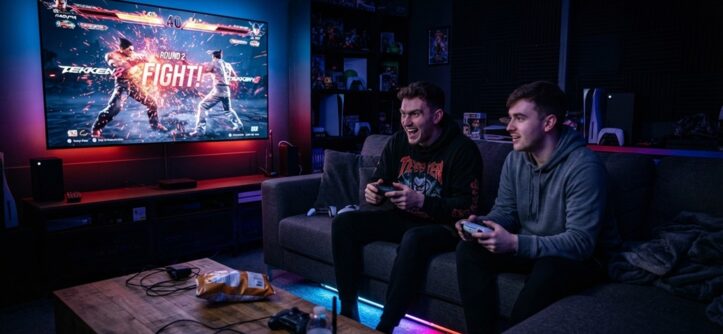
You can stream couch multiplayer fighting games to your TV in a few ways. Connect your console or PC through a streaming device like a Fire TV Stick, Nvidia Shield, or Steam Link. Or cast directly from a gaming PC using Steam’s Remote Play Together or a wired HDMI setup.
The best method depends on your source device. A PS5 or Xbox Series X already outputs to a TV natively. A laptop or handheld usually needs an extra streaming step.
Couch multiplayer fighting games think Street Fighter 6, Tekken 8, Super Smash Bros. Ultimate, or Guilty Gear Strive are built around split-screen or shared-screen local play. That makes them different from most other genres when it comes to streaming setups. Input lag matters more here than almost anywhere else. A half-second of delay can mean the difference between landing a combo and eating one.
This guide covers the real hardware and software options for getting couch fighting games onto a bigger screen. It also explains the trade-offs of each method and how to avoid the lag issues that ruin close matches.
Why Streaming Fighting Games to TV Is Different

The Frame-Perfect Problem
Fighting games are frame-perfect by design. Any streaming setup that adds noticeable input delay will hurt gameplay more than it would in a slower-paced game.
Most fighting games run at 60 frames per second. They rely on inputs landing within a handful of frames sometimes just 1-3 frames to execute combos, parries, or reversals correctly. A wireless streaming method that adds even 40-80 milliseconds of latency can make a game feel noticeably “off” to competitive players. This happens even when the picture still looks fine. Casual couch co-op games tolerate wireless casting far better than a fighting game session between two skilled players.
The Two Core Scenarios
People usually mean one of two things when they say “stream to TV”:
- Local display only. You just want the game visible on a TV instead of a monitor or handheld screen, with both players in the same room. This is the most common case for couch fighting games.
- Remote streaming to another location. You want to play with a friend who isn’t physically present, using their TV or device as a second “seat” at your couch session. This setup is more complex and depends heavily on internet connection quality.
Knowing which one you need changes the whole setup. It’s worth getting clear on this before you buy any hardware.
Direct HDMI Setup: The Zero-Latency Console Experience
If your gaming source is a modern console like a PS5, Xbox Series X/S, or Nintendo Switch, you can bypass network streaming entirely. Connecting directly via a high-speed HDMI cable gives you the ultimate couch multiplayer experience with zero input lag—essential for pulling off precise combos in competitive fighting games.
However, a dedicated console and TV setup isn’t always available when the urge to fight strikes. If you’re looking for fast-paced combat during a study break or downtime away from home, play mech and robot fighting games unblocked at school for instant, browser-friendly action.
Getting the Best Local Setup
- Use an HDMI 2.1 cable if your TV and console both support it. This unlocks 120Hz refresh rates on supported games, which smooths out fast-paced fighting game animations.
- Turn on Game Mode in your TV settings. Nearly every modern TV has a dedicated Game Mode. It strips out post-processing effects, like motion smoothing, that add input lag sometimes by 30ms or more.
- Want to stream your gameplay to Twitch or YouTube at the same time? Use the console’s built-in share or broadcast feature, or a capture card feeding into a PC. Avoid routing your gameplay through a third-party app that adds an extra decoding step.
When You’d Add a Streaming Box Anyway
Some players still add a device like an Nvidia Shield, Apple TV, or Fire TV Stick 4K Max between the console and TV. This lets them access streaming apps on the same screen. Here, the streaming box isn’t handling the game itself it just shares the HDMI port. It has no effect on fighting game latency as long as you plug the console directly into the TV.
Streaming From a Gaming PC to Your TV
For PC players, the best option depends on room layout. Is the TV in the same room as the PC, or a different one entirely?
If your PC and TV sit close together, a wired HDMI connection is still the gold standard. It adds zero extra latency, just like a console setup. If they’re in different rooms, you’ll need a long HDMI run, a wireless display adapter, or dedicated streaming software.
Option 1: Direct HDMI Cable
This is the simplest and most reliable method if your PC can physically reach the TV. Long HDMI cables (25-50 feet) are inexpensive and carry zero compression. That means no added input delay beyond the display’s own processing time.
Option 2: Steam Link or Steam Remote Play
Valve’s Steam Link app streams your PC’s screen wirelessly over your local network. It’s available on Fire TV, Apple TV, and Android TV devices. According to Valve’s own documentation, Steam Link minimizes latency on a strong local Wi-Fi or wired connection, though it never fully matches a direct cable.
For couch multiplayer with a remote friend, Steam Remote Play Together is genuinely useful. It lets a second player join your local session over the internet using just their own controller, without owning the game. Several popular fighting games support local co-op input from a remote player through this feature. Performance depends entirely on the host’s upload speed and the guest’s connection quality.
Option 3: Nvidia Shield or Similar Streaming Boxes
These devices act as a dedicated receiver for PC game streaming, using tools like GeForce Experience or Moonlight. They generally perform more consistently than casting apps built for general media, since they’re purpose-built for gaming.
Reducing Input Lag During Wireless Streaming

Wireless setups always add some delay compared to a wired connection. But you can manage that delay by controlling a few key variables.
Your local network’s quality is the biggest factor not your internet plan’s advertised speed, but the actual congestion on your Wi-Fi at the moment you play. A wireless setup fighting for bandwidth with other devices in the house causes inconsistent “microstutters.” These disrupt fighting games far more than steady, higher latency would.
Practical Steps to Reduce Lag
- Use a 5GHz or 6GHz Wi-Fi band, not 2.4GHz. It has less interference from household devices like microwaves and Bluetooth peripherals.
- Wire your streaming box directly to your router with Ethernet whenever possible. Most devices, including the Nvidia Shield and Fire TV Cube, support this even though it isn’t the default setup.
- Close bandwidth-heavy background apps on other devices sharing the same network during your session.
- Lower the streaming resolution slightly, from 4K to 1080p, if you see lag spikes. Most fighting game visuals hold up fine at 1080p, and the lighter encoding load can meaningfully cut latency.
- Test with a wired controller if your setup allows it. Bluetooth controllers can add their own small delay on top of the video stream’s latency.
A Problem Most Guides Skip
Input lag from your controller and video lag from your stream are two separate problems. Fixing one doesn’t fix the other. Players often troubleshoot “the game feels delayed” by checking only their streaming settings. They never consider that their wireless controller connection is adding its own 10-20ms on top.
Setting Up Split-Screen or Shared-Screen Play for TV
Once the video signal works, the couch multiplayer experience depends on how your specific fighting game handles multiple players on one screen.
Most modern fighting games Street Fighter 6, Tekken 8, Mortal Kombat 1 use a single shared screen for local versus play rather than a split view. Fighting games almost always show both characters on the same horizontal plane. This simplifies TV setup compared to genres like racing or shooters, which need true split-screen.
What to Check Before a Session
- Controller pairing. Sync both controllers to the console or PC before launching the game. Some fighting games have specific input-order requirements for Player 1 versus Player 2.
- Display settings inside the game. Some titles have their own frame rate caps or display options, separate from the console or TV settings. Check the in-game video menu even after your TV is configured correctly.
- Seating distance. Sitting too close to a large TV can make it harder to track fast-moving characters at the screen edges. A distance of roughly 1.5 to 2 times the TV’s diagonal size works as a reasonable starting point for competitive play.
Frequently Asked Questions
Does streaming to a TV add noticeable lag compared to playing on a monitor?
It depends on the TV, not the act of streaming itself. A TV with a proper Game Mode and low input lag rating performs similarly to a monitor. Many TVs still process video more than monitors do by default, so check your TV’s input lag setting first.
Can I play couch multiplayer fighting games with a friend who isn’t in the same room?
Yes. Features like Steam Remote Play Together or a console’s share-play options let a remote player join a local session using their own controller. Performance depends heavily on both players’ internet upload speeds, and it won’t feel identical to true local play.
What’s the best wireless streaming device for fighting games?
Devices built for gaming, like the Nvidia Shield TV Pro, generally outperform general media streamers like a basic Fire TV Stick. They prioritize low-latency video decoding. A wired Ethernet connection on whichever device you choose matters more than the specific brand.
Do I need a capture card to stream fighting games to my TV?
No. A capture card is only needed if you’re broadcasting your gameplay to an audience online, like on Twitch. For local display, a direct HDMI connection or a streaming box does the job.
Why does my fighting game feel delayed even though my TV supports low input lag?
The delay often comes from a wireless controller, a background app competing for Wi-Fi bandwidth, or a TV setting like motion smoothing that’s still active despite Game Mode being on. Check your controller’s connection type, your network congestion, and every individual picture-quality setting on the TV. Some settings stay active even inside Game Mode.
Conclusion
Getting couch multiplayer fighting games onto a TV comes down to matching your setup to your source device. Consoles need little more than a solid HDMI 2.1 cable and Game Mode turned on. PCs benefit from tools like Steam Link or Remote Play Together when a wired connection isn’t practical.
The real difference-maker for fighting games is controlling input lag from every angle: the display, the network, and the controllers themselves. Even small delays stand out far more in this genre than in most others. Start with the simplest wired option your setup allows. Add wireless streaming hardware only when your room layout genuinely requires it.