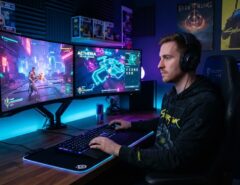

You can turn your in-game ammo counter into a real-time RGB effect. The trick is your game’s built-in data feature, like CS2’s Game State Integration. You pair it with your peripheral brand’s lighting software. When your clip runs low, your keyboard or mouse flashes red. No extra hardware needed. You just use software that already ships with your gear.
Have you ever glanced away from your ammo counter mid-firefight? Then got caught reloading at the worst moment? This setup fixes that. It’s not about looks alone. It gives your peripheral eyes, so you don’t have to take yours off the crosshair.
Below, we cover which games support this. We also cover which RGB ecosystems make it possible. Then we walk through setup, step by step. You can follow along even if you’ve never touched a config file before.
What “Hacking” Ammo Data into RGB Actually Means

This isn’t hacking in the illegal sense. It uses official data-sharing features that game developers built for this exact purpose. Most competitive shooters share live match data. Health, ammo, kill events, round state all of it flows through a system called Game State Integration, or GSI. RGB software reads that data and triggers lighting changes.
How Game APIs Enabled Reactive Peripheral Lighting
Game developers at studios like Valve and Riot initially designed live telemetry integration to power dynamic streaming overlays and broadcast HUDs, while simultaneously providing critical access for third-party accessibility tools. Ambient RGB synchronization was an unintended byproduct of this open data architecture. Recognizing the untapped potential of these raw game-state feeds, peripheral giants like Razer, Corsair, and Logitech developed custom SDK plugins to translate real-time ammo counts and health thresholds into dynamic, reactive lighting profiles—entirely within official software boundaries. However, while syncing visual HUD cues to your desktop lighting optimizes your situational awareness, raw mechanical control ultimately dictates your in-game performance; pairing these visual overlays with an optimal hardware profile—such as understanding how a low hump mouse fixes aim overshoot for small hands ensures your physical execution matches your upgraded visual reaction time.
The Difference Between GSI and Third-Party Mods
GSI setups pull data through a sanctioned, documented interface. Anti-cheat systems won’t flag them. Third-party memory-reading tools work differently. They inspect the game’s process directly. That carries real risk of an anti-cheat ban. We won’t cover that route here, and we’d steer you away from it entirely.
Which Games and RGB Ecosystems Support This
Not every shooter offers a data feed. Not every RGB brand can read one. Check compatibility first. It saves you a wasted hour later.
Games With Built-In Data Feeds
Counter-Strike 2 has the most mature, well-documented GSI system. Third-party apps can subscribe to ammo, health, round timer, and kill data. Valorant and Apex Legends offer more limited overlay APIs. Ammo-specific data isn’t always exposed the same way CS2’s is. Always check current developer documentation for your specific game first.
RGB Software That Can Read It
Razer Chroma Connect, Corsair iCUE, and Logitech G HUB all support game integration profiles. Some come built-in. Others need community plugins. SignalRGB and OpenRGB are worth a look too. They’re brand-agnostic. They often get plugin support for niche games faster than official brand software does.
Step-by-Step: Setting Up Ammo-Reactive RGB Lighting
Here’s the build order. Start with checking compatibility. Finish by testing the effect in a live match.
Step 1: Confirm Your Game Supports GSI
Open your game’s install folder or developer docs. Search for “Game State Integration,” “companion API,” or “overlay SDK.” If none of that shows up, this method won’t work for your game. You’d need a different approach, like a stream-deck macro instead.
Step 2: Install Your Peripheral’s Companion Software
Download iCUE, G HUB, Chroma Connect, or your brand’s equivalent. Update it fully before you continue. Older versions sometimes lack the game integration module entirely. That’s a common reason setups fail on the first try.
Step 3: Enable or Add the Game Integration Config File
For CS2, this usually means adding a small .cfg file to the game’s cfg folder. That file tells the game to send data to a local port your RGB software listens on. Brands usually publish these files on their support pages. Copy the file exactly as given. Don’t type it from scratch. A single formatting error will silently break the connection.
Step 4: Map Ammo Thresholds to Lighting Effects
Open your RGB software’s game integration panel. Set rules like “ammo below 20% = pulse red.” Or try “ammo below 5% = flash on WASD keys only.” Most software lets you scope effects to specific zones. That matters if you don’t want your whole keyboard flashing red every time you reload.
Step 5: Test in a Private Match Before Ranked Play
Load a bot match or practice range session. Empty a full magazine and watch your peripheral closely. This helps you catch any lag between the ammo counter and the lighting cue. Adjust your threshold percentages before you trust this in a real match.
A Practical Angle Most Guides Skip: Latency Matters More Than Looks

Most tutorials focus on making the effect look impressive. They skip the timing problem entirely. If your RGB reacts late, the effect becomes a distraction instead of a help. Some setups introduce real lag, especially when chained through bridge software like SignalRGB. You could be dry-firing before the light even changes.
The fix is simple: keep your integration chain short. Use your peripheral brand’s native software directly. Skip two or three layers of bridge apps unless a specific plugin truly needs them. If you do need a bridge app for cross-brand compatibility, test the real reaction time. Use a stopwatch or a slow-motion phone recording. Don’t just trust that it “feels fine.” A half-second delay is enough to make the cue useless in a real gunfight.
Troubleshooting Common Setup Problems
Most failures trace back to a handful of causes. Check these before you blame your hardware.
The Lighting Never Triggers At All
This is almost always a port mismatch or a missing config file. Double-check that the port number in your game’s config matches the port your RGB software listens on. Restart both the game and the RGB app after any config change. That fixes a surprising number of “nothing happens” cases.
The Effect Triggers But Feels Delayed
Disable any overlay or bridge software you don’t strictly need. Each extra layer adds processing time. Updating your peripheral’s firmware, not just its software, can shave off lag too.
It Worked, Then Stopped After a Game Update
Developers sometimes rename their data integration endpoints during major patches. That breaks old config files. Check your peripheral brand’s support forum or subreddit after big updates. Community members usually post fixed config files within a day or two.
Frequently Asked Questions
Will this get me banned by anti-cheat software?
No. Not if you use the game’s official Game State Integration or SDK. A memory-reading tool is a different story. GSI setups only receive data the developer chose to share. They never modify or inspect the game’s process.
Do I need a specific brand of keyboard or mouse for this to work?
You need a peripheral with software that supports game integration profiles. That mainly means Razer, Corsair, Logitech, and SteelSeries gear. It also includes any brand SignalRGB or OpenRGB supports. Generic RGB peripherals without dedicated software usually can’t be programmed this way.
Can I use this for games other than CS2?
Yes, if the game exposes a similar data feed. Valorant and a few other titles offer partial support. Ammo-specific triggers aren’t universal, though. Always check your game’s current developer docs, since support changes with updates.
Does this affect game performance or FPS?
The impact is usually minimal. The data feed is a lightweight local connection, not a heavy overlay. If you do notice frame drops, the RGB software’s own overhead is the more likely cause.
Is there a way to test this without owning RGB peripherals?
Yes. Some RGB software, like OpenRGB, includes a simulation or preview mode. It shows your lighting logic on-screen, even without connected hardware. Use it to build and test your ammo-threshold rules before you buy any gear.
Conclusion
Turning your ammo counter into an RGB cue comes down to three things. First, confirm your game exposes a data feed. Second, make sure your peripheral software can read it. Third, keep the connection chain short enough to avoid lag. Once it’s set up, you’ll stop noticing it consciously. Then, one day, it flashes red and saves you from reloading in the open. Start with the compatibility check. Follow the config steps in order. Test everything in a low-stakes match before you trust it in ranked play.