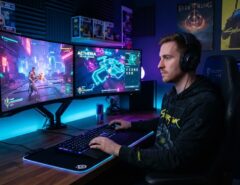

Custom gaming controls make you faster because they cut wasted movement and put your most-used actions under your strongest fingers. You remap keys, adjust sensitivity, and rebuild your control layout around your own hand size and playstyle. The result is quicker reactions and fewer missed inputs during fast fights.
Most players stick with default settings for months, sometimes years, without realizing how much speed they’re leaving on the table. Default layouts are built for the average player, not for you. A few small changes can shave real time off your reaction speed.
This guide walks you through the exact process, from picking the right hardware to fine-tuning sensitivity, rebinding keys, and testing your setup under real match pressure.
Why Default Controls Slow You Down

Default controls slow you down because they force your fingers to travel farther than necessary. Game developers design default layouts to be easy for beginners to learn, not to be fast for competitive play.
Think about a default keyboard layout. Your pinky often controls crouch, while your ring finger handles reload. For many hand shapes, that’s an awkward stretch. Every extra millimeter your finger travels adds delay between the moment you decide to act and the moment the game registers it.
Controller defaults have the same issue. Jump, melee, and reload buttons are often placed for comfort, not speed. Competitive players usually move at least one of these actions to a paddle or a closer button within their first few hours of serious practice.
The fix isn’t complicated. You just need to identify which actions you use most often, then place them where your fingers can reach fastest.
Step 1: Elevate Your Core Hardware Foundation
The effectiveness of any custom control layout hinges entirely on the hardware beneath your fingertips. While optimal setups vary by genre, competitive speed requires ultra-responsive gear capable of translating split-second inputs into immediate in-game action. Before remapping your keybinds for maximum efficiency, make sure your physical setup isn’t bottlenecking your potential explore on choose the best gaming gear for your budget to assemble an elite, high-performance toolkit without overspending.
Keyboard and Mouse Considerations
A mechanical keyboard with fast-actuation switches reduces the time between a keypress and the game registering it. Many competitive players use switches with shorter actuation points, since less travel distance means quicker inputs.
Mouse choice matters just as much. A lightweight mouse with a reliable sensor lets you make small, precise movements without lag or unwanted acceleration. Weight, grip style, and sensor quality all affect how consistently you can aim under pressure.
Controller Considerations
If you play on a controller, back paddles are one of the biggest speed upgrades available. Paddles let you jump, crouch, or reload without lifting your thumb off the right stick. That means you keep aiming while performing other actions, instead of pausing to move your thumb.
Stick drift and dead zones also affect speed. A controller with tight, responsive sticks and adjustable dead zones gives you more control over small movements, which matters in fast-paced aiming.
Step 2: Rebind Keys Around Your Most-Used Actions
Rebinding keys around your most-used actions is the single biggest speed improvement most players can make for free. Open your game’s control settings and list every action you use in a typical match. Then rank them by frequency.
Put your top five actions on the keys or buttons closest to your resting hand position. On keyboard, that usually means W, A, S, D, plus the keys directly around them, like Shift, Ctrl, Space, and Q. On controller, that means face buttons, bumpers, and paddles if you have them.
A genuinely useful trick many guides skip: test your rebinds using a practice range or bot match before taking them into ranked play. Muscle memory takes time to build, and switching binds mid-ranked-match will hurt your performance short-term. Spend at least 30 minutes in a low-stakes mode before trusting new binds in a real match.
Common actions worth prioritizing for speed:
- Crouch or slide
- Reload
- Melee or interact
- Ability or utility use
- Ping or communication shortcuts
Step 3: Adjust Sensitivity for Faster, More Accurate Reactions
Adjusting sensitivity correctly means finding the point where you can flick to a target quickly without overshooting it. There’s no universal “best” sensitivity; it depends on your mouse DPI, monitor size, and personal aim style.
Start by measuring your current 360-degree turn distance, meaning how far you physically move your mouse to make a full turn in-game. Many competitive players in shooters keep this between 20 and 45 centimeters, though this varies by game and genre.
If your sensitivity is too high, you’ll overshoot targets and struggle with fine tracking. If it’s too low, you’ll turn too slowly during close-range fights. Lower your sensitivity gradually, testing after each change, until small target adjustments feel controlled rather than jumpy.
On controller, pay attention to acceleration curves and response curve settings. A more linear curve gives predictable movement, while an accelerated curve rewards fast flicks but can feel inconsistent until you adapt to it.
Step 4: Fine-Tune Dead Zones and Button Sensitivity
Fine-tuning dead zones and button sensitivity removes the small delays hiding inside your controller or keyboard settings. These settings are easy to overlook, but they directly affect how fast your inputs register.
Dead Zone Adjustment
A dead zone is the small area around your stick’s center where movement doesn’t register. Large dead zones feel safer but add delay, since you have to push the stick further before the game responds. Lowering your dead zone slightly, without introducing stick drift, tightens your aim response.
Trigger and Button Sensitivity
Many modern controllers let you adjust how far you need to press a trigger before it registers, sometimes called a “hair trigger” mode. Reducing this distance speeds up actions like shooting or braking in racing games. Test this setting carefully, though, since too short a distance can cause accidental inputs.
Step 5: Save, Back Up, and Test Your Layout

Saving and backing up your layout protects hours of setup work and lets you test it properly before relying on it. Most games let you save custom profiles, and many controllers store settings directly on the device or through companion software.
Once your layout is saved, test it in three different situations: a calm practice mode, a casual match, and finally a competitive or ranked match. Speed improvements that feel great in practice sometimes fall apart under real pressure, so testing across different stakes matters.
Keep a simple note of your settings, including sensitivity numbers, dead zone values, and key bindings. If you switch games, computers, or controllers, you’ll be able to rebuild your exact setup in minutes instead of starting from scratch.
Common Mistakes That Slow Down Custom Setups
Common mistakes usually come from changing too much at once or copying a pro player’s settings without adjusting them to your own hand size and playstyle. Here are the most frequent ones to avoid:
Copying pro settings exactly.
Professional players often have years of muscle memory built around their specific settings. Their sensitivity or binds may not suit your hand size or reaction speed.
Changing everything at once.
Adjusting sensitivity, dead zones, and key binds all in the same session makes it hard to tell which change helped or hurt your performance.
Skipping the testing phase.
Jumping straight into ranked play with new settings often leads to worse performance until your muscle memory adapts.
Ignoring hardware limits.
Software settings can’t fully fix a slow sensor, high-latency wireless connection, or worn-out switches.
Frequently Asked Questions
How long does it take to adjust to new gaming controls?
Most players need one to two weeks of regular play to fully adjust to new binds or sensitivity. Practicing in low-stakes modes speeds up this process significantly.
Should I use the same sensitivity across different games?
Not exactly the same number, but a similar 360-degree turn distance helps keep your muscle memory consistent across games. Many players convert their sensitivity between games using online sensitivity converters.
Do custom controls really make a measurable difference in speed?
Yes, according to industry experts and competitive players, faster access to key actions reduces reaction time and input delay. The effect is small per action but adds up significantly over a full match.
Is it better to remap keys on keyboard or use a controller for speed?
Neither is universally faster; it depends on the game genre and your personal comfort. Keyboards often offer more simultaneous inputs, while controllers with paddles can reduce thumb movement for certain actions.
What’s the easiest first change to make for faster controls?
Moving your crouch or reload action to a closer key or paddle is usually the easiest and most noticeable first change. It requires no new hardware and takes only a few minutes to set up.
Conclusion
Setting up custom gaming controls for speed comes down to four things: solid hardware, smart key placement, well-tuned sensitivity, and honest testing. None of these steps require expensive gear or advanced technical knowledge, just a willingness to experiment and adjust based on what actually works for your hands and your playstyle.
Start small. Change one setting, test it, and build from there. Within a couple of weeks, your custom setup will feel more natural than the default ever did, and you’ll notice the speed difference in every match.