

The right finger sleeves reduce mobile FPS lag by keeping your fingers dry, smooth, and consistently responsive on the screen, which cuts down on missed taps, delayed swipes, and misregistered inputs during fast gunfights. This kind of “lag” often isn’t your phone or your internet at all it’s friction, sweat, and inconsistent skin contact interfering with your touchscreen’s ability to read your movements accurately. Choosing sleeves built for gaming, not generic anti-sweat gloves, is what actually fixes the problem.
If you’ve ever missed a flick shot in a game like PUBG Mobile, Call of Duty Mobile, or Free Fire and blamed your ping, there’s a good chance the real culprit was your fingertip losing contact with the glass for a split second. This guide breaks down exactly what to look for so you stop guessing and start picking sleeves that match your grip, your phone, and your playstyle.
Why Finger Sleeves Affect FPS Performance and Input Lag
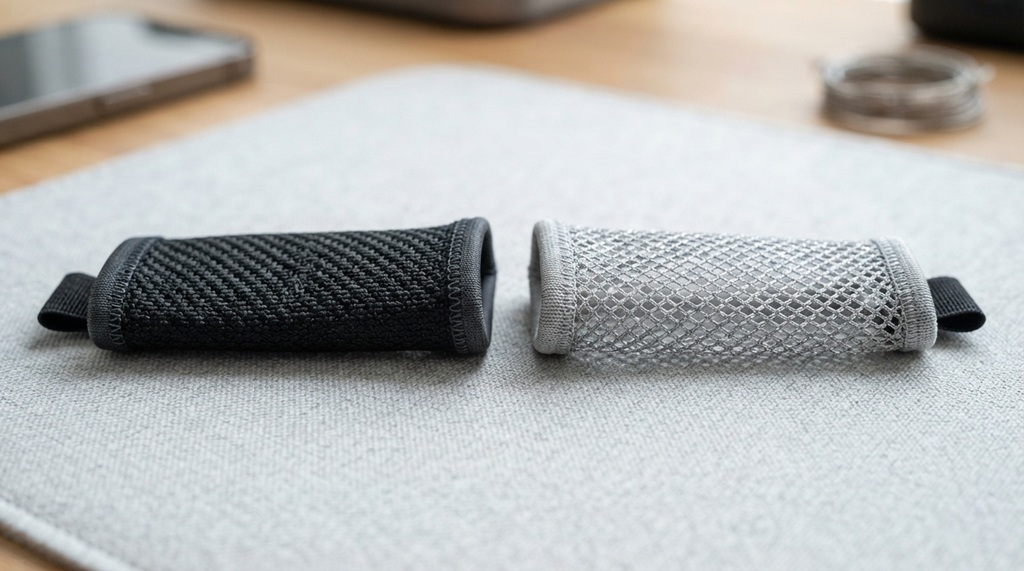
Finger sleeves reduce input lag by creating a smoother, drier surface between your skin and the touchscreen, which helps the digitizer register your taps and drags without interruption. Touchscreens work by detecting small electrical changes from your finger’s contact when sweat, oil, or uneven pressure disrupts that contact, the screen can misread or momentarily drop your input, which feels exactly like lag even though your frame rate and network are fine.
This is especially noticeable during high-pressure moments in mobile FPS games quick 180-degree turns, rapid-fire tapping, or dragging your view while sliding. A damp or dry-but-sticky fingertip can cause “ghost touches” or delayed response, which competitive players often mistake for a hardware or connection issue. Sleeves designed for gaming solve this by standardizing the contact surface, so every swipe feels the same regardless of how sweaty your hands get mid-match.
Key Factors to Consider Before Buying Finger Sleeves
Strategic Fabric Selection for Zero-Lag Input
The material composition of your finger sleeve directly dictates touch-response latency, friction consistency, and thermal regulation during intense gaming sessions. Elite mobile competitors rely on ultra-fine silver fiber or high-density conductive nylon weaves materials engineered to maintain flawless conductivity, eliminate friction, and instantly wick away sweat. In contrast, standard cotton-blend alternatives absorb moisture, leading to touch drops and sticky screen resistance mid-combat. Look past vague marketing terms like “pro-grade” and prioritize high-percentage metallic weaves to ensure reliable, high-speed input transmission; once you’ve perfected your physical controls for peak mechanical speed, complete your high-tech battle station by exploring hack FPS ammo counters into RGB setups to sync your active in-game HUD with real-time dynamic room lighting.
Thickness and Sensitivity
Thinner sleeves generally preserve more touch sensitivity, which matters for precise aim and quick drags. A sleeve that’s too thick can dull the screen’s ability to detect fine movements, making small aim adjustments feel sluggish even if the sleeve itself isn’t causing lag. Players who rely on delicate flick shots or fine sensitivity settings usually do better with ultra-thin, seamless sleeves rather than padded or double-layered ones.
Fit and Sizing
A properly sized sleeve should feel snug without cutting off circulation or bunching at the fingertip, since loose fabric changes how consistently your finger contacts the screen. Most brands offer sizing based on finger circumference rather than generic small/medium/large labels, so measuring your finger before ordering is more reliable than guessing from the packaging. A sleeve that shifts or wrinkles during play reintroduces the exact contact inconsistency you’re trying to eliminate.
Seamless vs. Seamed Construction
Seamless sleeves reduce the risk of the seam interfering with screen contact, especially during diagonal swipes. Seamed sleeves are usually cheaper but can create a slight ridge that catches on the glass during fast movements, which some players feel as a stutter in their swipe. If your budget allows it, seamless designs are the safer choice for anyone gaming competitively rather than casually.
Matching Finger Sleeves to Your Playstyle
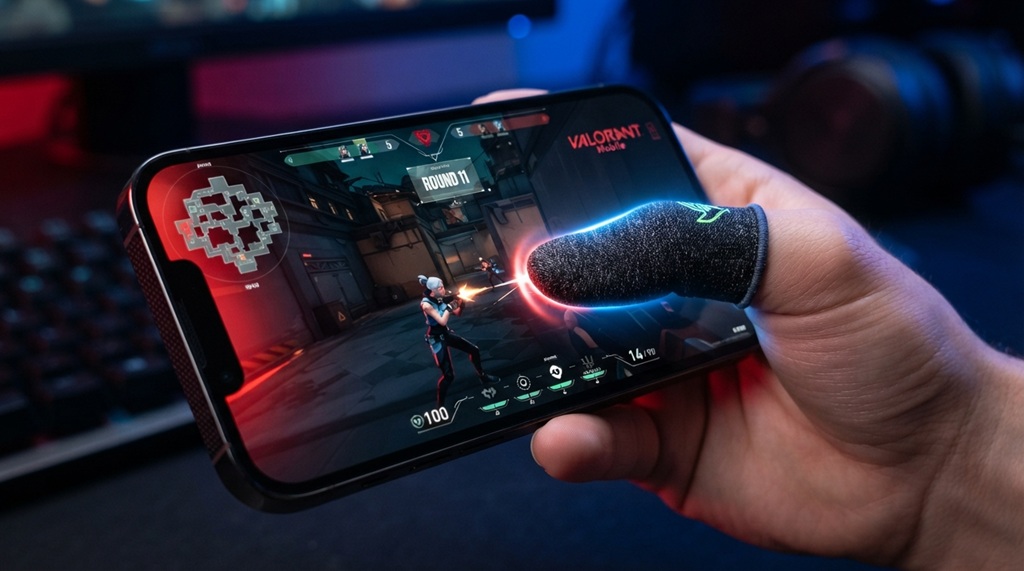
Claw Grip and Multi-Finger Setups
Players using a claw grip with four or more fingers on the screen need sleeves that perform consistently across every finger, not just the ones doing the aiming. Since claw-grip players often use their pinky or ring finger for peek-fire or gyroscope stabilization, uneven sleeve quality between fingers can throw off timing on secondary inputs even if the primary aiming finger feels fine. Buying a full set from the same batch, rather than mixing sleeve brands, helps keep the feel consistent across all fingers.
Two-Finger and Simple Control Setups
Casual or two-finger players generally prioritize comfort and sweat control over ultra-thin sensitivity, since their inputs are less rapid-fire than claw-grip setups. A slightly thicker, more cushioned sleeve can actually be preferable here, since comfort over longer sessions matters more than shaving off milliseconds of sensitivity.
Humid Climates and Heavy Sweaters
Players in hot or humid regions, or anyone who sweats heavily during intense matches, should prioritize moisture-wicking performance above all else. In these cases, breathable, quick-dry fabric matters more than thinness, because even a thin sleeve that becomes saturated with sweat will start causing the same contact issues it was meant to prevent.
Common Mistakes That Cause Lag Even With Finger Sleeves
Wearing the wrong size is the most common mistake a loose sleeve moves independently of your fingertip, which reintroduces the exact inconsistency sleeves are meant to fix. Even a high-quality sleeve will underperform if it isn’t snug enough to move as one unit with your finger.
Another overlooked issue is screen protector compatibility. Some tempered glass protectors have a slightly different texture or coating than bare glass, and certain sleeve fabrics interact poorly with matte or anti-glare protectors, reducing sensitivity. If you notice lag after adding a new screen protector, testing the sleeve on bare glass first can help you isolate whether the sleeve, the protector, or the combination is the problem.
A less obvious factor is sleeve age. Conductive fibers in touchscreen-compatible fabric can degrade with repeated washing and stretching, so a sleeve that worked perfectly a few months ago may gradually lose sensitivity even though it looks physically fine. Rotating in a fresh pair every few months, especially if you play daily, is a simple fix most guides don’t mention.
How to Test Finger Sleeves Before a Ranked Match
Testing your sleeves before jumping into ranked play helps you catch fit or sensitivity issues before they cost you a match. Open your phone’s touch sensitivity settings or a basic drawing app and trace slow circles, fast flicks, and diagonal swipes to see if the line is smooth or breaks up. If the sleeve produces any hesitation or skipped input during this simple test, it will almost certainly show up during a real gunfight.
It also helps to test in training mode or a bot match rather than jumping straight into ranked, since this lets you compare your aim consistency with and without the sleeve under realistic conditions. Small adjustments like trimming a sleeve that’s slightly too long or swapping to a thinner pair are much easier to catch during a low-stakes match than after a ranked loss.
Frequently Asked Questions
Do finger sleeves actually reduce input lag, or is it placebo?
They can genuinely reduce input lag when the cause is sweat or friction-related, since a stable, dry contact surface helps the touchscreen register taps more consistently. However, they won’t fix lag caused by network issues, low frame rates, or an overloaded device, so it’s worth ruling those out separately.
How many finger sleeves do I actually need for mobile FPS games?
Most players use one to two sleeves for their primary aiming and firing fingers, while claw-grip players may use three or four for full-hand coverage. Buying in pairs or sets is usually more practical than single sleeves, since replacements are easier when one wears out.
Can I use regular touchscreen gloves instead of gaming finger sleeves?
Regular touchscreen gloves are usually too thick and less sensitive for the fast, precise input mobile FPS games require. Gaming-specific sleeves are thinner and designed specifically to preserve aim sensitivity, which makes them a better fit for competitive play.
How often should I replace my finger sleeves?
Most players should replace sleeves every one to three months with daily use, depending on wash frequency and fabric quality. A noticeable drop in touch sensitivity, even after washing, is usually the clearest sign it’s time for a new pair.
Do finger sleeves work with tempered glass screen protectors?
Most sleeves work fine with standard tempered glass, but matte or anti-glare protectors can sometimes reduce sensitivity when paired with certain fabrics. Testing your sleeve on your specific screen protector before a ranked session is the safest way to confirm compatibility.
Conclusion
Choosing the right finger sleeves comes down to matching material, thickness, and fit to your specific playstyle and climate, rather than picking whatever is cheapest or most popular. Sweat and friction are often the real reason for missed shots and delayed swipes in mobile FPS games, and the right sleeve setup directly addresses that instead of masking it. Test your sleeves before ranked matches, replace them regularly, and pick your fit based on how you actually grip your phone not just what influencers recommend and you’ll notice a real, consistent improvement in how your taps and swipes register.