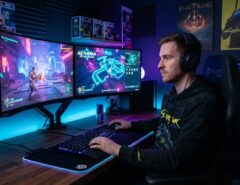

Lag ruins games. It costs you kills, drops your frame rate, and makes fast-paced titles feel unplayable. The good news: you can fix most lag and FPS problems with the right hardware setup and a few key settings.
This guide breaks down every piece of the puzzle. You’ll learn how to configure your monitor, GPU, network, and PC settings for the smoothest gameplay possible. No fluff, just steps that work.
We’ll also cover a few tricks most gaming guides skip. These small adjustments make a real difference, especially in competitive shooters and fast-paced games.
Choose the Right Monitor Settings First
Your monitor sets the ceiling for your FPS experience, so start here before touching anything else. A mismatched refresh rate or resolution wastes your GPU’s power and adds input lag you don’t need.
Match Your Refresh Rate to Your GPU Output
Set your monitor’s refresh rate to match or exceed your GPU’s actual frame output. A 144Hz monitor running at 60Hz in the display settings caps your visuals at 60 frames, even if your PC pushes more.
Go to your display settings and manually select the highest refresh rate your monitor supports. Windows sometimes defaults to a lower rate after driver updates, so check this often.
Turn On G-Sync or FreeSync
Enable G-Sync (Nvidia) or FreeSync (AMD) if your monitor supports it. These technologies sync your monitor’s refresh rate with your GPU’s frame output in real time.
This sync eliminates screen tearing and reduces stutter. You’ll find the toggle in your Nvidia Control Panel or AMD Radeon Software, plus a matching option in your monitor’s on-screen menu.
Optimize Your GPU Settings for Performance
Your graphics card needs the right driver settings to hit max FPS, not just raw power. Most gamers never touch these settings, so this step alone can boost performance.
Update Your Graphics Drivers
Outdated drivers cause stutter, crashes, and lower frame rates. Check for updates through GeForce Experience, AMD Software, or your GPU manufacturer’s website at least once a month.
New driver releases often include game-specific optimizations. A driver update can boost FPS in a newly released title by a noticeable margin, according to GPU manufacturers’ own release notes.
Set Power Management to Maximum Performance
Find the Power Management Mode setting in your Nvidia Control Panel or AMD equivalent. Switch it from “Optimal Power” to “Prefer Maximum Performance.”
This forces your GPU to run at full clock speed during gameplay instead of scaling up and down. The difference shows up most in CPU-bound games where quick power shifts cause micro-stutters.
Reduce Input Lag for Faster Response Times
Input lag is the delay between your action and what happens on screen, and it’s separate from FPS. Even a game running at 200 FPS can feel sluggish if input lag is high.
Use a Wired Connection for Mouse and Keyboard
Wireless peripherals add a small delay compared to wired ones, even with modern low-latency wireless tech. Competitive players almost always choose wired mice and keyboards for this reason.
If you must use wireless, pick a device built specifically for gaming with a dedicated USB dongle, not standard Bluetooth. Bluetooth adds more lag than a proprietary wireless connection.
Turn Off V-Sync (Unless You Have G-Sync/FreeSync)
V-Sync caps your frame rate to match your monitor’s refresh rate, but it also adds input lag. Turn it off if you already use G-Sync or FreeSync, since those handle syncing without the delay.
If you don’t have adaptive sync, consider using a frame rate cap instead. Capping your FPS a few frames below your monitor’s max refresh rate often feels smoother than uncapped V-Sync.
Fix Network Lag and Ping Issues
Network lag shows up as rubber-banding, delayed hits, or disconnects, and it has nothing to do with your GPU. Most online games suffer from network issues more than hardware bottlenecks.
Switch to a Wired Ethernet Connection
Wi-Fi introduces packet loss and inconsistent ping, even on a strong signal. A wired Ethernet connection gives you a stable, direct line to your router.
If running a cable isn’t possible, use a powerline adapter as a middle ground. It won’t match Ethernet, but it beats standard Wi-Fi for consistency.
Close Background Apps That Use Bandwidth
Streaming services, cloud backups, and auto-updating apps eat into your available bandwidth during gameplay. Close them before you launch a match, especially anything downloading in the background.
Check your router settings for Quality of Service (QoS) controls. QoS lets you prioritize gaming traffic over other devices on your network, which helps a lot in shared households.
Optimizing In-Game Graphics Settings for Peak Frame Rates

Even the most advanced hardware falls short if unoptimized graphics configurations create severe bottlenecking. High-end components provide the foundation, but dialing in parameters like render scale, ray tracing, and shadow fidelity directly dictates your real-time frame rates and input response. Before fine-tuning software-level display modes, review our comprehensive guide on choose the best gaming tech for ultimate performance to verify that your display bandwidth, GPU architecture, and system memory are fully synchronized to handle low-latency processing.
Lower Shadows, Reflections, and Post-Processing First
Shadows, reflections, and post-processing effects cost the most FPS for the least visual payoff in competitive play. Lower these settings first before touching resolution or texture quality.
Most competitive players run these settings low or off entirely. It also makes enemies easier to spot against cleaner, less cluttered backgrounds.
Disable Motion Blur and Depth of Field
Motion blur and depth of field are visual effects, not performance settings, but disabling them frees up GPU resources. They also make fast movement harder to track precisely.
Turn both off in the settings menu of any competitive shooter. Your frame rate gain will be small, but your visual clarity will improve noticeably.
The Overlooked Fix: Windows Background Processes
Most guides stop at GPU and monitor settings, but Windows itself often causes hidden FPS drops. Background processes silently eat CPU cycles and RAM that your game needs.
Open Task Manager and check the Startup tab for unnecessary programs launching with Windows. Disable anything you don’t need running at all times, like chat apps or cloud sync tools you rarely use.
Also check Windows Game Mode in Settings. Game Mode tells Windows to prioritize your game’s resource requests over background tasks, and it’s off by default on some systems even after updates.
One more overlooked culprit: Windows Update. A large update downloading in the background during a match can spike your CPU usage and tank your FPS without any obvious warning sign.
Frequently Asked Questions
What causes lag even with a powerful gaming PC?
Lag usually comes from network issues, not raw PC power. Check your ping, switch to a wired connection, and close bandwidth-heavy background apps before assuming your hardware is the problem.
Does a higher refresh rate monitor really reduce lag?
Yes, a higher refresh rate monitor reduces motion blur and shows new frames faster, which lowers perceived lag. It won’t fix network lag, but it does improve visual responsiveness and input feel.
Should I overclock my GPU for better FPS?
Overclocking can boost FPS, but it adds heat and risk if done without proper cooling. Start with driver updates and in-game settings first, since those offer safer, more reliable gains.
Is Wi-Fi ever good enough for competitive gaming?
Wi-Fi can work for casual play, but it introduces inconsistent ping that hurts competitive performance. A wired Ethernet connection remains the more reliable choice for ranked or tournament play.
How often should I update my graphics drivers?
Check for driver updates at least once a month, or right after a major game release. New drivers often include specific optimizations that can improve FPS in newly launched titles.
Conclusion
Zero lag and max FPS come from small fixes across your whole setup, not one magic setting. Start with your monitor and GPU drivers, then move to network and in-game settings.
Don’t skip the Windows background process check. It’s the step most guides leave out, and it often makes the biggest difference for players who already have solid hardware.
Work through each section one at a time. Test your FPS and ping after every change, and you’ll land on a setup built for smooth, lag-free gameplay.