
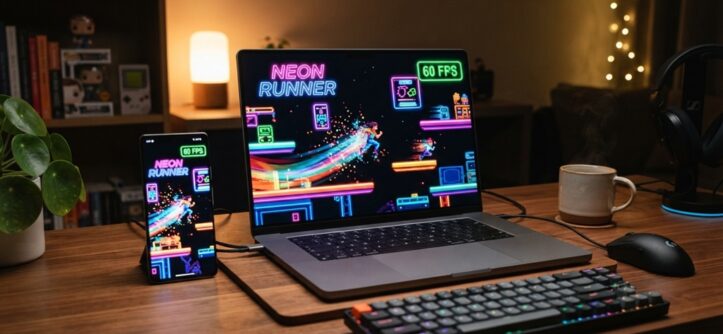
You can play 60FPS casual games unblocked with no download. Just use browser-based game sites that run on HTML5 or WebGL. These sites stream the game engine straight through your browser. Nothing installs on your device. Sites like CrazyGames, Poki, and itch.io host thousands of titles built this way. Many run smoothly at 60 frames per second, even on school or work computers with locked-down permissions.
Finding “unblocked games” isn’t the hard part that term is everywhere. The hard part is finding games that actually run smoothly, skip the installer, and dodge your network’s firewall. A game can look great in a screenshot but still chug along at 20FPS. That’s not casual fun. That’s frustrating.
This guide covers where to find smooth, no-download games. It shows you how to confirm a game really hits 60FPS. And it explains what to do when your connection or device holds you back. Everything below works entirely in a browser tab.
What “60FPS Unblocked No Download” Actually Means
This phrase bundles three separate requirements together. Understanding each one helps you filter out sites that only deliver on one or two of them. A game needs to be browser-playable, network-accessible, and performance-optimized all at once to truly qualify.
No Download
“No download” means the game runs using web technologies like HTML5, WebGL, or WebAssembly. These run directly inside your browser. There’s no .exe file and no installer. Nothing saves permanently to your device beyond temporary cache files. This matters most on shared or managed computers where you can’t install software.
Unblocked
“Unblocked” describes games you can reach even on networks with content filters, like school or workplace Wi-Fi. These networks often block gaming sites by domain name or category. So “unblocked” game sites work around this. They use less-recognizable URLs, mirror sites, or domains the filter hasn’t flagged yet.
60FPS
Sixty frames per second is the frame rate most people link to smooth, responsive motion. It’s the standard many console and PC games target for casual play. For browser games, hitting 60FPS depends on three things: the game’s code efficiency, your device’s hardware, and how much your browser runs in the background at the same time.
Best Places to Play 60FPS Casual Games Unblocked
Established browser-gaming platforms tend to work best. Skip random single-game “unblocked” pages. Platforms have a reputation to protect, so they usually test their catalog for performance.
Large Aggregator Sites
Sites like CrazyGames, Poki, and Silvergames host thousands of HTML5 titles. Most list game tags like “smooth” or “action” that hint at performance quality. These platforms run ads to fund hosting, but the games themselves load instantly. No signup required.
itch.io for Indie Casual Games
itch.io hosts a large number of independent developers. They build lightweight, well-optimized casual games made specifically for browser play. Indie devs often prioritize performance over flashy graphics. Because of that, many of these titles run at a locked 60FPS, even on modest hardware. Mainstream sites often overlook this detail.
School-Friendly Mirror Sites
Some sites brand themselves specifically as “unblocked games.” Names like “Unblocked Games 76” mirror popular titles on alternate domains built to slip past school content filters. Quality and safety vary a lot between these sites. Stick to ones with visible community reviews or a long operating history. Avoid brand-new domains.
How to Verify a Browser Game Runs at 60FPS Before You Play
Before committing to a laggy session, you can instantly verify a game’s frame rate in modern browsers by pressing F12 to open Developer Tools, navigating to the performance tab, and enabling the FPS meter under rendering options to ensure smooth playback. While lock-tight frame rates keep action crisp, the true goal of casual browser gaming is taking a quick, stress-free break so once you’ve confirmed your setup is running smoothly, play casual games for adults free to unwind to find low-stress titles designed for effortless relaxation.
Using Built-In Browser Tools
Chrome and Edge both include a frame rate meter inside their developer tools. Open DevTools by pressing F12. Go to the “Rendering” tab and enable “Frame Rendering Stats.” You’ll see a live FPS counter overlaid on the page while the game runs.
Using a Standalone FPS Extension
Lightweight browser extensions can add a persistent FPS counter to any tab. You won’t need to open DevTools every time. These are handy for a quick glance without digging through browser settings.
What Counts as “Actually 60FPS”
Some games spike to 60FPS during idle menus but drop to 30–40FPS during real gameplay. That’s not actually 60FPS. Watch the counter during action-heavy moments. That’s the real test of whether a game is optimized or just marketed well.
Fixing Lag and Frame Drops on Unblocked Game Sites

Most performance problems come from the browser environment, not the game itself. That means you can usually fix them without switching games at all.
Close Background Tabs and Extensions
Every open tab shares your device’s memory and processing power. Browser extensions especially ad blockers, VPNs, and shopping tools run constantly in the background, even when you’re not using them. Close unused tabs and disable non-essential extensions. This frees up resources the game engine can use instead.
Switch to a Lighter Browser Mode
Most browsers offer a “Basic” or “Lite” hardware acceleration setting. Some phones include a battery-saver mode that throttles CPU speed. Turn off battery saver. Turn ON hardware acceleration in your browser’s settings, usually under Settings > System. Both changes help browser games render more smoothly.
Lower In-Game Graphics Settings
Many HTML5 games hide a settings menu behind a gear icon. Even simple-looking casual games often include options like particle effects, shadows, or resolution scaling. Turn these down. You’ll reduce the rendering workload without changing the core gameplay.
Check Your Network, Not Just Your Device
A game can feel laggy in a stuttery, delayed way rather than just choppy. That usually points to a network issue, not a frame rate issue the two feel similar but need different fixes. Run a quick speed test to rule out your connection. This matters especially for games with a multiplayer or leaderboard component.
Playing at School or Work Without Getting Blocked
Network filters block gaming sites in a few predictable ways. Knowing which method your network uses helps explain why some workarounds succeed and others don’t.
Understand How Filters Block Sites
Most school and office networks use category-based filtering. This blocks entire lists of known gaming domains rather than scanning page content in real time. That’s why lesser-known or newly launched game sites often slip through. They simply aren’t on the blocklist yet.
Use HTTPS Versions of Sites
Some older filtering systems only block the unencrypted HTTP version of a domain. Making sure you access the HTTPS version which most browsers now default to can occasionally bypass outdated filters. This isn’t guaranteed on modern networks, but it’s worth checking.
Respect Your Network’s Rules
Many school and workplace networks block games for good reasons. Bandwidth management and policy compliance top the list. Bypassing those filters can carry consequences, depending on your institution’s rules. If your setting has clear policies against gaming, save browser gaming for personal time on personal networks.
Browser and Device Settings for Smoother 60FPS Play
A few one-time settings changes make a noticeable difference. They improve every browser game you play afterward, not just one title.
Update Your Browser and Graphics Drivers
Outdated browsers and graphics drivers cause a lot of poor frame rates in browser games. WebGL performance depends heavily on how well your GPU driver talks to the browser. Checking for updates takes a few minutes. It often fixes stuttering instantly.
Enable Hardware Acceleration
Hardware acceleration lets your browser offload rendering work to your device’s GPU instead of relying entirely on the CPU. Chrome and Edge usually enable this by default. Still, confirm it under Settings > System some “lite” or battery-saving browser modes turn it off automatically.
Use a Wired or Stable Connection When Possible
A wired Ethernet connection reduces the small delays that Wi-Fi introduces. This helps with games that have any online component. It can make gameplay feel smoother, even if it doesn’t change your actual frame rate. This matters more for competitive casual games, like .io titles, than for single-player puzzle games.
Frequently Asked Questions
Is it legal to play unblocked games at school?
It depends entirely on your school’s specific technology use policy, which you agreed to when you got network access. Playing games on a blocked network can bring consequences anything from a warning to loss of device privileges. Check your school’s actual rules instead of assuming it’s fine.
Why does a game say 60FPS but still feel laggy?
Feeling laggy and running at a low frame rate are two different problems. Laggy input often points to network latency or input delay. Choppy visuals point to actual frame rate drops. Use a browser FPS counter to confirm which one you’re dealing with before you try to fix it.
Do unblocked game sites carry virus or malware risk?
Reputable, well-established platforms like CrazyGames, Poki, and itch.io stay generally safe. They host games through sandboxed browser environments. Lesser-known mirror sites carry more risk, especially if they prompt you to download anything or click suspicious pop-ups. A genuine browser-based game never needs a download.
Can I play these games on a Chromebook?
Yes. Chromebooks suit HTML5 and WebGL browser games well, since ChromeOS builds around the Chrome browser itself. Performance still depends on your specific Chromebook’s hardware. Newer models handle 60FPS games more reliably than budget or older units.
What’s the difference between HTML5 games and Flash games?
HTML5 games run natively in modern browsers no plugin required. Flash games relied on Adobe Flash Player, which Adobe officially discontinued in December 2020. No major browser supports it anymore. If you spot a site still advertising “Flash unblocked games,” those titles likely got converted to HTML5 or emulated. Genuine Flash content won’t run anymore.
Conclusion
Finding 60FPS casual games that are genuinely unblocked and download-free comes down to three things. Choose a reliable browser-gaming platform. Confirm the frame rate yourself instead of trusting a label. And tune a few browser and device settings that affect every game you play afterward. Aggregator sites like CrazyGames and Poki work well. Indie-friendly platforms like itch.io round out your options. From there, a quick FPS check and a few closed background tabs usually solve most performance complaints no installation required.


