

Losing hours of game progress because your phone crashed, got reset, or ran out of storage is one of the most frustrating things that can happen to a mobile gamer. The good news is that saving offline casual games on Android is easy once you know which method fits your situation whether that’s using built-in cloud saves, manual backups, or third-party apps.
Most casual games (think match-3 puzzles, idle clickers, or offline farming sims) don’t automatically back up your progress to the cloud unless you’re signed into a Google Play Games account or the developer has built in their own save system. That means your progress lives only on your device until you take action to protect it.
This guide walks through every practical way to save your offline casual games, from the simplest built-in options to more advanced backup techniques for power users who don’t want to risk losing their save files ever again.
Why Offline Casual Games Don’t Save Automatically
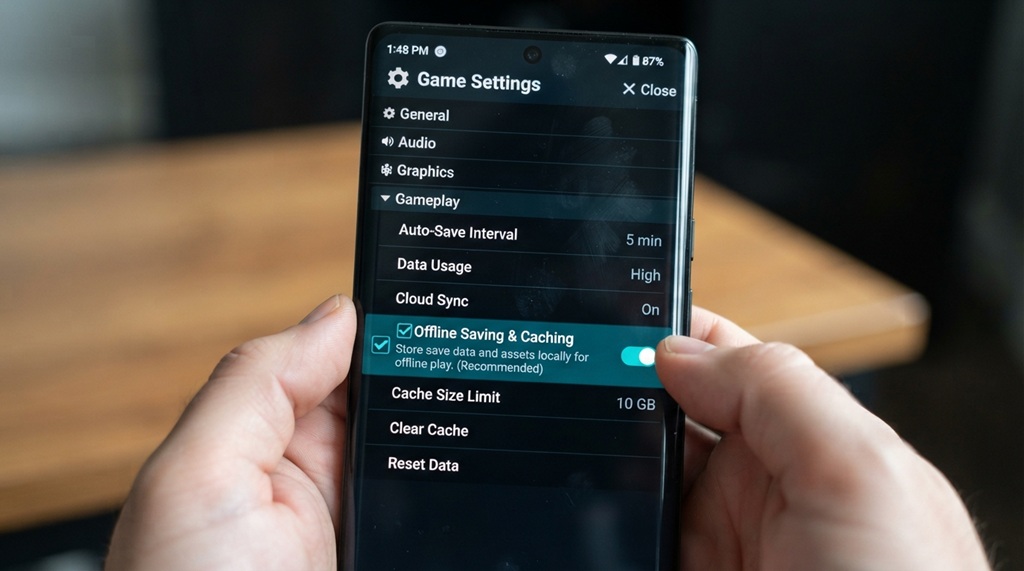
Offline games store progress locally on your device instead of a server, which is exactly what makes them vulnerable to data loss. Since there’s no internet connection required to play, there’s often no built-in mechanism pushing your save file to the cloud in real time.
This local-only storage approach is intentional it’s what allows these games to work without Wi-Fi or mobile data in the first place. Developers of small or casual titles also frequently skip cloud infrastructure entirely because it adds cost and complexity for a game that might only be a few megabytes in size.
The tradeoff is that if you uninstall the app, clear its data, factory reset your phone, or switch devices, that progress can vanish instantly unless you’ve backed it up somewhere else.
Method 1: Use Google Play Games Cloud Save
Google Play Games offers built-in cloud saving for supported titles, and it’s the easiest option if the game you’re playing supports it. This feature automatically syncs your save data to your Google account, so you can restore it on any device just by signing in.
How to Check If a Game Supports Cloud Save
To verify cloud support, open the Google Play Games app, tap your profile icon, and look under Data & Storage for titles marked with a cloud sync icon. Since many indie and ad-supported casual games skip this feature, you should also check the game’s internal settings menu for manual backup options; however, if managing offline saves becomes too tedious, you can always skip local installations play one tap casual games online for instant, storage-free fun.
How to Turn It On
Inside the game itself, look for a settings option labeled “Sync,” “Cloud Save,” or “Sign in with Google Play.” Once enabled, your progress uploads automatically whenever you’re connected to Wi-Fi or data, and downloads again when you reinstall or switch devices.
Method 2: Manually Back Up Save Files Using a File Manager
If a game doesn’t support cloud sync, you can often manually copy its save files using a file manager app, giving you full control over your backups. This method works because most Android games store save data in predictable folders, usually under Android/data/[package name]/files or Android/obb/[package name].
Here’s the general process:
- Install a file manager app (Files by Google or a similar app works well)
- Navigate to the internal storage, then
Android/data/ - Find the folder matching your game’s package name
- Copy the entire folder to a safe location like your device’s main storage, an SD card, or a cloud drive
Keep in mind that starting with Android 11, Google restricted access to the Android/data folder for most third-party apps, so this method may require a file manager with special permissions or a computer connection via USB to access those folders reliably.
Method 3: Use a Third-Party Backup App
Dedicated backup apps can automate the process of saving game data without needing manual file navigation, which is especially useful if you back up regularly. Apps designed specifically for game or app data backup can package save files, app data, and settings into a single archive you can restore later.
What to Look For in a Backup App
A reliable backup app should let you select specific apps rather than backing up your entire phone, export files to cloud storage or a computer, and restore data without requiring root access. Root-requiring apps tend to offer deeper access to game data folders, but they also carry more risk and aren’t necessary for most casual games.
A Genuinely Useful Tip Most Guides Skip
One angle that rarely gets mentioned: check if your casual game has a “Restore Purchases” or “Link Account” feature buried in its settings menu, separate from cloud save. Many freemium casual games (especially ones with in-app purchases) quietly maintain a lightweight account system tied to your purchase history even if they don’t advertise full progress sync. Linking this, even briefly, before uninstalling a game can sometimes recover purchased items or unlocked levels that a generic file backup would miss entirely.
Method 4: Back Up to a Computer via USB
Connecting your Android device to a computer gives you direct access to game folders and lets you store backups somewhere completely separate from your phone. This is one of the most reliable methods because it doesn’t depend on cloud storage limits or app permissions.
To do this:
- Connect your phone to your computer with a USB cable
- Enable “File Transfer” mode when prompted on your phone
- Open the phone’s storage in File Explorer (Windows) or Android File Transfer (Mac)
- Locate the game’s data folder and copy it to a folder on your computer
This method is particularly useful before doing a factory reset or switching to a new phone, since you’re creating a physical, offline copy of your save data that isn’t tied to any account.
Method 5: Use Cloud Storage Apps for Manual Sync
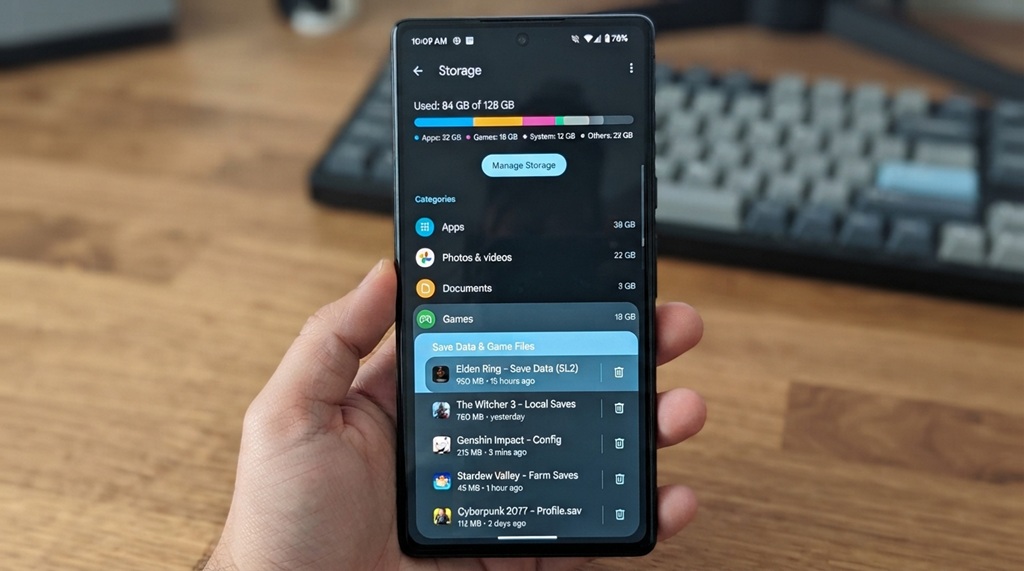
Uploading your copied save files to a cloud storage service like Google Drive or Dropbox adds an extra layer of protection beyond your device or computer. This works well as a companion step to Methods 2 or 4 once you’ve copied the save folder, you upload it manually rather than leaving it as the only copy.
Create a dedicated folder in your cloud storage app labeled with the game’s name and backup date, so you can find the right version quickly if you ever need to restore it. This is especially helpful if you play multiple offline casual games and want an organized system rather than a single messy backup folder.
How to Restore a Saved Game File
Restoring works by reversing whichever backup method you used, and the exact steps depend on where your backup is stored. For Google Play Games cloud saves, simply sign into the same Google account and reinstall the game it should prompt you to restore progress automatically.
For manually backed-up files, reinstall the game first (without opening it yet), then copy your saved folder back into the same Android/data/[package name] location it came from before launching the app. Opening the game before restoring the files can sometimes cause it to generate a fresh save file that overwrites the space where your backup needs to go, so order matters here.
FAQ
Does every offline Android game support save backup?
No, not every game does it depends entirely on whether the developer built in cloud sync or accessible local save files. Games using heavily encrypted or non-standard save formats may not be backup-friendly at all, even with file manager access.
Will backing up my save data require root access?
Not usually for casual games. Most save folders are accessible through standard file managers or USB connection, though some newer Android versions have added restrictions that occasionally make root or specific permissions helpful for deeper access.
Can I transfer offline game saves to a completely different phone?
Yes, as long as you copy the save folder to the same file path on the new device before opening the game for the first time. This works best when both devices run similar Android versions, since folder structures can occasionally differ.
What happens to my save data if I uninstall a game without backing up?
In most cases, uninstalling deletes the local save data permanently, especially if the game has no cloud account tied to it. This is exactly why backing up before uninstalling, even temporarily, is worth the extra few minutes.
Is there a way to know my save file was backed up correctly?
The safest check is to restore the backup on a secondary device or after clearing the app’s data, then confirm your progress loads as expected. Simply seeing the file in your backup folder isn’t proof it will work testing the restore process is the only real confirmation.
Final Thoughts
Saving offline casual games on Android doesn’t require advanced technical skills, just a bit of planning before you need it. Whether you rely on Google Play Games cloud sync, manually copy save folders, or use a dedicated backup app, the key is doing it consistently rather than only remembering after you’ve already lost progress.
If you play multiple casual games regularly, it’s worth setting a monthly reminder to back up your save data, especially before major Android updates or a planned device switch. A few minutes of backup now can save you from redoing hours or in some idle games, weeks of progress later.


