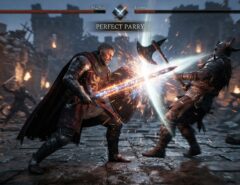

You can play 2 player action games unblocked on a Chromebook in three main ways. Use browser-based unblocked game sites. Try proxy or extension-based access methods. Or pick lightweight web games that don’t rely on restricted domains. Most school and office Chromebooks run on managed networks, and a web filter blocks gaming sites automatically. The games themselves usually aren’t the problem the domain is. Once you know where to look, you can get a two-player action game running in just a few minutes.
This matters more than it used to. Chromebooks are now the most common device in American classrooms. Students game during downtime recess, study hall, free periods and it’s a normal part of how they socialize. The trouble is that IT administrators lock down Chromebooks with content filters like GoGuardian, Securly, or Google Workspace policies. These tools block anything categorized as “games,” even harmless two-player titles.
Below is a practical breakdown of how unblocked 2 player action games work on Chromebook. You’ll learn which methods hold up, and how to avoid trouble while using them.
What “Unblocked” Actually Means on a Chromebook

“Unblocked” means the game sits on a site your network’s filter hasn’t flagged yet. Or you’re using a method that bypasses the filter entirely. It doesn’t mean the game is hacked, cracked, or illegal your school or workplace just hasn’t added that site to its block list yet.
Chromebook network filters usually block categories of websites, not individual game files. They target gaming, streaming, and social media as broad groups. That’s why a site like “unblocked games 66” or “unblocked games world” can host hundreds of titles under one domain. The filter hasn’t caught up to that specific URL yet, or the site uses a generic-sounding name to dodge detection.
IT departments update these block lists often, sometimes weekly. A site that works today might stop working next month. Because of this, you’ll want more than one method ready don’t rely on a single “magic” website.
Safe Access Methods for Chromebook 2-Player Action Games
You have three main ways to play local 2-player action games on a Chromebook HTML5 mirror sites, web-based proxies, and cloud gaming platforms each balancing performance, connection stability, and network filter detection. If you prefer playing solo or switching over to a desktop, explore on action games with no ads for any PC to get ad-free, high-performance gameplay on any computer setup.
Unblocked Game Websites
This is the easiest and most common option. Sites built around the “unblocked games” niche host large libraries of browser games including 2 player action, fighting, and shooting titles. They run on domains school filters haven’t categorized yet.
Look for sites that run HTML5 games instead of Flash. Adobe discontinued Flash Player in January 2021, and no modern browser supports it anymore. If a site still advertises Flash games, treat it as outdated most of those titles simply won’t load.
Browser Extensions and Proxy Tools
Some students install browser proxy extensions to tunnel around network restrictions. The extension tricks the Chromebook into thinking it’s browsing a different, unblocked site. This method takes more technical know-how and carries real risk. Many schools ban proxy use outright in their acceptable-use policy. Installing an unauthorized extension on a managed Chromebook can also trigger an IT alert or get the device flagged.
If you own a personal Chromebook not one managed by a school or employer this risk doesn’t apply to you. A reputable proxy extension works fine there. On a managed device, skip this method; it’s not worth the risk.
Progressive Web Apps (PWAs) and Installed Games
Here’s an angle most guides skip: some 2 player action games come as installable Progressive Web Apps. Install one to your Chromebook using the “Install app” option in Chrome’s address bar. The game then runs more like a local app than a live webpage. Because of that, the network filter doesn’t always re-check it the same way it checks a fresh page load.
This trick won’t work on every network some filters intercept all outbound traffic no matter how you launched the app. Still, test it on any game that offers a PWA install option. When it works, it tends to be the most stable long-term method.
Top Types of 2 Player Action Games Worth Trying

Not every “unblocked” library covers the same ground. Some sites specialize in specific genres, and knowing what to search for saves you time.
Split-Screen Fighting and Brawler Games
Stick-figure fighters, arena brawlers, and 1v1 duel games dominate most unblocked libraries. They stay lightweight and run entirely in-browser, so they don’t need a server connection to work.
Co-op Shooting and Survival Games
In these games, two players team up against waves of enemies. They offer strong replay value, which explains their popularity. They also lean heavier on browser resources, so performance can dip on older Chromebook hardware.
Racing and Reflex-Based Action Games
Simple two-player racing or reaction-speed games make a good fallback when a filter is especially aggressive. Filters often categorize them more loosely than “combat” or “shooter” titles, so they slip through more easily.
How to Improve Performance on Chromebook
Even when a game loads fine, Chromebooks especially budget education models can struggle to run it smoothly. A few small adjustments make a real difference.
Close unnecessary tabs and extensions before you start playing. School Chromebooks often ship with just 4GB of RAM, and multiple open tabs eat through that fast. Two-player action games, especially ones with physics or particle effects, run noticeably smoother in a clean browser session.
Check whether Chrome has hardware acceleration turned on. Go to chrome://settings, then System, then look for “Use hardware acceleration when available.” Admin policy may lock this setting on managed school devices. On personal devices, though, turning it on can meaningfully boost frame rates in browser games.
Staying Safe and Avoiding Trouble
Not every “unblocked games” site deserves your trust, and most articles on this topic skip that fact entirely. Some sites run aggressive ad networks or pop-ups that redirect you to unrelated, sometimes inappropriate pages. That risk grows if you click blindly through search results looking for a working link.
Build one simple habit: before you trust a new unblocked games site, check for HTTPS look for the padlock icon in the address bar. Avoid any site that fires off multiple pop-up windows the moment it loads. That’s a strong sign of low-quality ad monetization, not a well-maintained game library.
On a school-managed Chromebook, keep this in mind too: network administrators can usually see your browsing activity, even when a site technically loads. Getting a game to run isn’t the same as going unnoticed. Check your school’s or workplace’s device-use policy before you lean on any bypass method regularly.
Frequently Asked Questions
Are unblocked 2 player action games safe to play on a school Chromebook?
Most reputable unblocked game sites carry low malware risk, but many run heavy advertising that leads to unwanted pop-ups. Stick to well-known sites with HTTPS, and skip any that bombard you with ads right after loading.
Why do some unblocked games sites stop working suddenly?
School and workplace IT departments update their content filter block lists often, sometimes weekly. A domain that worked last month can get flagged and blocked without warning. This is normal, and it’s why you should keep more than one access method on hand.
Do I need Flash Player to play these games?
No. Adobe discontinued Flash Player in January 2021, and no current browser including Chrome on Chromebook supports it anymore. A modern unblocked game site should run HTML5 instead, which works natively in Chrome without extra plugins.
Can two players use the same Chromebook keyboard for local co-op?
Yes. Most browser-based 2 player action games use split-keyboard controls WASD for one player, arrow keys for the other, for example. This setup works fine on a standard Chromebook keyboard, and you won’t need extra hardware.
Will using a proxy or VPN get me in trouble at school?
It can. Most school acceptable-use policies explicitly ban bypassing network filters, and administrators can often detect proxy or VPN traffic even when they can’t see the destination site. Check your school’s specific policy before you make this method a regular habit.
Conclusion
Playing 2 player action games unblocked on a Chromebook comes down to picking the right access method for your situation. Try dedicated unblocked game sites for convenience. Use PWA installs for stability. Save proxy tools for personal, unmanaged devices only. Genre matters too brawlers and racing games tend to run smoother and slip past filters more easily than heavier co-op shooters. Whichever method you pick, favor sites that use HTTPS and skip the pop-ups. And always keep your specific network’s rules in mind before you make bypass tools a regular habit.